Registration of WSQ image library (for Windows 32-bit)
You can register WSQ image library in two ways: #1st wayIn your software project you can call directly function RegisterWSQ() from the DLL. See example projects provided at the address: WSQ image library sample projects #2nd wayYou can download and use small program which will register "WSQ image library" on your computer. Detailed instructions are provided below. Step 1
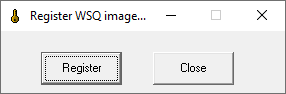
Step 2Extract files from the archive "registerWSQ.zip". Make sure that after extraction files "registerWSQ.exe" and "WSQ_library.dll" are located in the same directory. Step 3Run the program "registerWSQ.exe" and press button "Register".
Step 4Registration window will show up. Press button "Generate serial number". Current version of "WSQ image library" does not use the name for serial number generation, so please do not tick the checkbox named "Use name for serial number generation". This checkbox is only for legacy use in case if you already have old serial number and old unlock code which were generated using old versions of "WSQ image library". Obsolete legacy instructions: make sure that the name which you send to Cognaxon Technical Support is EXACTLY the same as you have typed into the registration window (lowercase / uppercase letters does matter), please use only English characters for the name in order to avoid potential problems.
Step 5After the button "Generate serial number" has been pressed the serial number will be generated.
You can use "Copy" button to copy serial number to the clipboard. Send your name and serial number to Cognaxon Technical Support. Step 6After Cognaxon has received your name and serial number, Cognaxon will send you "unlock code" which will unlock "WSQ image library" and remove limitations. Step 7Close the program after successful registration. Next time you start your program, the "WSQ image library" will run in registered mode. The generated license is located in file "wsq_license.key".
Additional note #1In case if you will have problems with registration please download WSQ image library registration utility.File "RegisterWSQ.zip" contains inside file "WSQ_library.ini". File "WSQ_library.ini" contains inside one line "Win2003II60Mode=0", change this line to "Win2003II60Mode=1", and rerun registration procedure again. This INI setting uses different registration engine and generates different serial number. The generated license is located in file "wsq_license.key". Please make sure that all three files "WSQ_library.ini" and "wsq_license.key" and "WSQ_library.dll" are located in the same directory. Additional note #2You must use the same mode (admin or non-admin) both: 1) for registration and 2) when running your application.For example. If you have registered "WSQ image library" in admin mode, then you should run your application also in admin mode. If you have registered "WSQ image library" in simple use mode (non-admin mode), then you should run your application also in simple use mode (non-admin mode). If you will register "WSQ image library" in admin mode and will run your application in simple use mode (non-admin mode) then registration might not work. Please use the same mode (admin or non-admin) both for registration and when running your application. Additional note #3During the registration please make sure that file "WSQ_library.dll" is located inside the directory which has the permission to write "wsq_license.key" file.The system directories like "C:\Program Files\...\", "C:\Windows\...\" do not allow writing of files. As for example, if during registration you will put the file "WSQ_library.dll" into directory "C:\Program Files\...\", then "WSQ_library.dll" will be unable to write "wsq_license.key" file in that directory and "WSQ_library.dll" will stay unregistered. To solve this problem just put the file "WSQ_library.dll" into some non-system directory, as for example "C:\WSQ\", run the registration procedure here, and when after registration the "wsq_license.key" file will be created, then you can move both files ("WSQ_library.dll" and "wsq_license.key") into any directory that you want. Additional note #4After registration the new file "wsq_license.key" is created.Please make sure that files "wsq_license.key" and "WSQ_library.dll" are located in the same directory. Also please make sure that you do not have multiple copies of "WSQ_library.dll" file. Sometimes programmers make a mistake of having multiple copies of "WSQ_library.dll" file. They register one copy of "WSQ_library.dll" file in one location, however application uses/calls another "WSQ_library.dll" file from another directory/folder which is not registered. You can have as many copies of "WSQ_library.dll" file in your computer as you want, however you need to make sure that every copy of "WSQ_library.dll" file has also "wsq_license.key" file located in the same directory. |